
Corporate and client-facing profiles
Explore a suit, blazer, tailored dress, or polished business-casual direction while keeping the existing portrait recognizable.
Preview a professional outfit on an existing portrait while keeping the person, expression, composition, background, and lighting recognizable.
A professional profile photo is judged at a small size, where the face, expression, collar, shoulders, and contrast do most of the work. This page focuses on that head-and-shoulders use case rather than full-body outfit planning. The best source already has a suitable expression, camera angle, background, and crop.
Choose clothing that fits the real context of your work: a restrained blazer for client-facing roles, a clean knit or overshirt for a less formal field, or a simple blouse or tailored dress when appropriate. The edit should support an accurate profile, not manufacture status, credentials, or affiliation.
The current homepage example keeps the adult subject, expression, framing, and light familiar while comparing darker and lighter tailored directions for a professional image.
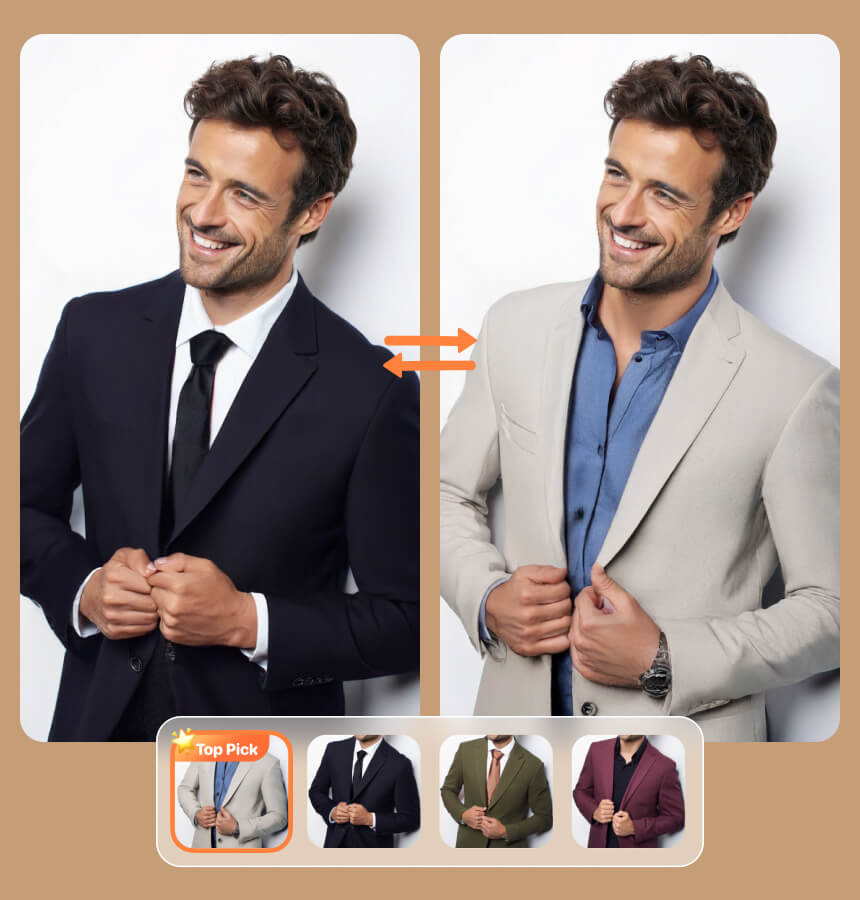
Apply the selected tailored suit direction with a clean shirt pairing and realistic lapels. Preserve the same adult person, face, hair, expression, shoulder position, crop, background, camera angle, and lighting.
Compare a small number of credible wardrobe directions based on your actual role, audience, workplace norms, and the formality already present in the portrait.
Explore a suit, blazer, tailored dress, or polished business-casual direction while keeping the existing portrait recognizable.
Try clean overshirts, modern jackets, simple knits, or understated layered outfits that feel professional without becoming overly formal.
Compare the visual tone of different industries before arranging final headshots, updating a portfolio, or discussing wardrobe with a photographer.
Use a shared dress-code direction as an early concept for team portraits while preserving each person's identity and avoiding misleading representations.
Use a sharp head-and-shoulders, half-body, or three-quarter photo with an appropriate expression and uncluttered composition. The clothing area should be visible enough for the requested change.
Upload a clear blazer, shirt, blouse, dress, suit, or business-casual outfit that matches your role, industry, seniority, and the formality of the original portrait.
Ask the model to change only the clothing while keeping the face, hair, expression, body proportions, crop, background, camera angle, and lighting consistent.
AI edits can change small details unexpectedly. Review the face, hairline, body shape, collar, lapels, buttons, jewelry, hands, background edges, and lighting before using a generated image in a professional setting.
Do not add protected uniforms, employer branding, qualifications, badges, or role-specific equipment that implies an affiliation or credential you do not hold. Use the tool for legitimate wardrobe visualization and disclose significant edits when the context requires it.
Answers about portrait crops, professional colors, business casual clothing, identity preservation, logos, truthful use, and realistic outcomes.
Yes. Replace only the clothing while preserving the face, expression, crop, background, and lighting.
Choose clean lines, restrained colors, limited patterns, and formality appropriate to your field.
Yes. Name that garment and list every clothing and portrait detail that should remain unchanged.
The tool aims to preserve identity, but reject any result that changes you or your context misleadingly.
Review image rights, platform rules, employer policies, and visible accuracy before professional use.
Navy, charcoal, soft blue, cream, and muted green often keep attention on the face.
Yes. Use an overshirt, knit, blouse, simple jacket, or blazer that reflects your real role.
Only with permission and truthful affiliation. Never add credentials or employer marks that could mislead.
Show collar and shoulder structure, preserve the camera angle, and inspect neckline and hair boundaries.
No visibility or hiring result is guaranteed. A truthful profile and relevant experience matter beyond clothing.
Use a clear head-and-shoulders photo and a restrained clothing reference, then review the face, collar, shoulders, crop, and background before professional use.